Setting Up FTP and Music Preview for O2JamO2
A word of caution: FTP is an unencrypted protocol and is vulnerable to man-in-the-middle (MITM) attacks. It is strongly recommended to use this feature only on trusted networks.
Why FTP Matters Now?
In previous O2Jam clients, FTP was strictly a Music Shop thing. You’d buy a song, the client downloads it from the FTP server, done. The game has flags for whether a song is installed locally (set during OJNList parsing), and everything worked as its own thing separate from the game server.
O2JamO2 changes this. Now the room host can download songs directly from the music selection dialog, and when the host starts a game, any room member who doesn’t have the music files installed will download them on demand. The download happens inside the room, and the game shows each member’s download progress. Opcodes like 4038 (download progress notification) and 4039 (broadcast to other members) tie the FTP download state directly into the game’s TCP session.
This is the first time the FTP functionality overlaps with the game server domain. In order to put all these network handlers to practice, I had to set up a working FTP server to see how it works. The music preview was just a bonus I stumbled onto along the way lol.
Finding the FTP Code
I started by looking at the WinINet imports in the binary. The client imports FtpOpenFileA, FtpFindFirstFileA, InternetReadFile and friends from WININET.dll. Tracing these led me to a class called CCFtp (found via the RTTI string .?AVCCFtp@@) which handles all the download logic.
The interesting part is in the initialization function. Instead of reading the FTP server address from launch arguments or config, the client just hardcodes everything:
- Username:
anonymous - Password:
[email protected] - Server IPs:
121.125.76.135and121.125.76.136
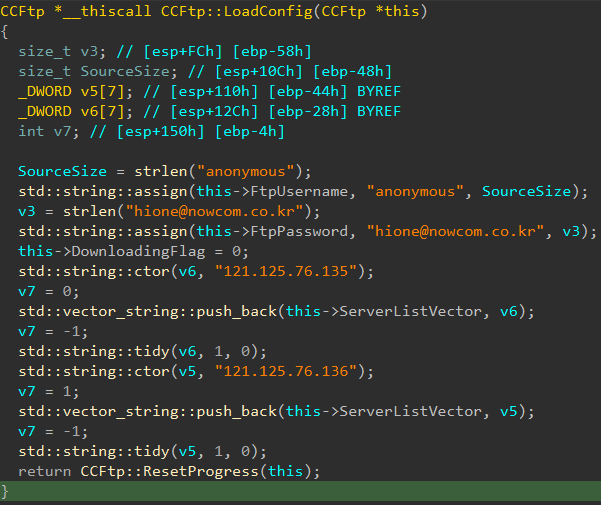
What about the FTP host parameter from the launch arguments? Well, it gets written to a field in another object related to the network but nothing ever reads it. This is ironic because the value that comes from the official launcher is exactly the same as the values hardcoded here.
In fact, many parameters from decrypted RSA payload are mocked and ignored officially by the launcher and the client, they even suppose to contain an actual account password! Luckily the password is just a mock dummy string, so this is might be blessing for me since my encrypted payload can be found all over the internet because I wasn’t aware that they might contain my credential phew.
Enough about that, I’ll be posting a separate post about the encrypted payload of launch argument, its a whole different beast. For now, let’s focus on FTP stuff.
How the Download Works
The download runs on a separate thread. When a song needs to be downloaded, the client:
- Connects to the FTP server with anonymous credentials in passive mode
- Changes directory to
O2Jam/O2JamMusic/ - Downloads
o2ma<musicId>.ojnando2ma<musicId>.ojmin 8KB chunks
But before the actual FTP transfer starts, the client creates a small INI file in .\Music\TEMP\ to track the download state. For example, downloading music ID 100 creates .\Music\TEMP\o2ma100.ini with contents like:
[FileInfo]
FileNum=2
FileName1=o2ma100.ojn
FileStatus1=<filesize>
FileName2=o2ma100.ojm
FileStatus2=<filesize>
The client reads FileNum from this INI to know how many files to download, and the FileName entries to build the local temp paths. Each file is downloaded into the temp directory with an underscore suffix (e.g., o2ma100.ojn_), and fopen is called with "ab" (append binary) mode so interrupted downloads can theoretically be resumed.
Once both files are downloaded successfully, they get moved to their final location at .\Music\ and the temp INI is cleaned up. If the download fails, the client deletes all partial temp files and the INI.
So the FTP server needs to serve files at:
/O2Jam/O2JamMusic/
    o2ma100.ojn
    o2ma100.ojm
    o2ma101.ojn
    o2ma101.ojm
    ...
Simple enough. Let’s set it up.
Setting Up the FTP Server
I went with stilliard/pure-ftpd:hardened as a Docker image since it supports anonymous FTP out of the box. After some configuration and mounting the music files into the right directory structure, I had a working FTP server.
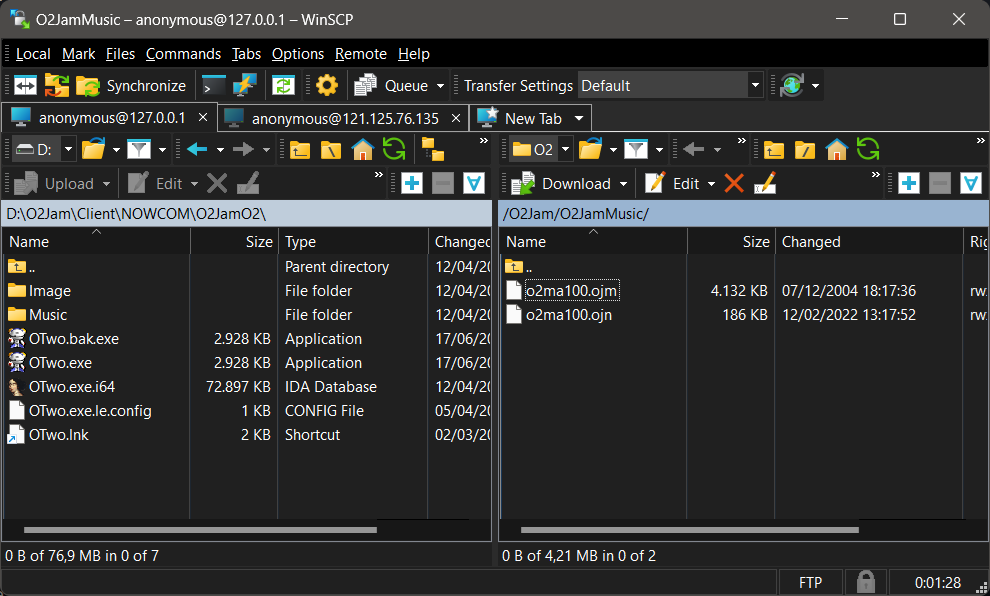
But here’s the thing: the client is hardcoded to connects to 121.125.76.135 or 121.125.76.136. I need to redirect them to my machine somehow.
The /etc/hosts Approach (Doesn’t Work)
My first instinct was to add entries in the hosts file. But of course, /etc/hosts (or C:\Windows\System32\drivers\etc\hosts on Windows) maps hostnames to IPs, not IPs to IPs. The client connects directly to an IP address, so the hosts file can’t help here.
Binding the IP to Loopback
What actually works is binding the hardcoded IP address to your loopback adapter. On Windows, you can do this with:
# First FTP Server
New-NetIPAddress -InterfaceAlias "Loopback Pseudo-Interface 1" -IPAddress 121.125.76.135 -PrefixLength 32

# Second FTP Server
New-NetIPAddress -InterfaceAlias "Loopback Pseudo-Interface 1" -IPAddress 121.125.76.136 -PrefixLength 32
This tells Windows that 121.125.76.135 and 121.125.76.136 is a local address. Now when the game tries to connect to 121.125.76.136:21, it reaches my local FTP server.
One thing that tripped me up initially was the passive mode response. The FTP server inside Docker was advertising 127.0.0.1 as the passive mode address, which doesn’t work when the client is connecting via 121.125.76.136. Setting the PUBLICHOST environment variable on the Docker container to the correct IP fixed that.
After that, music downloads started working.
Finding the Music Preview Code
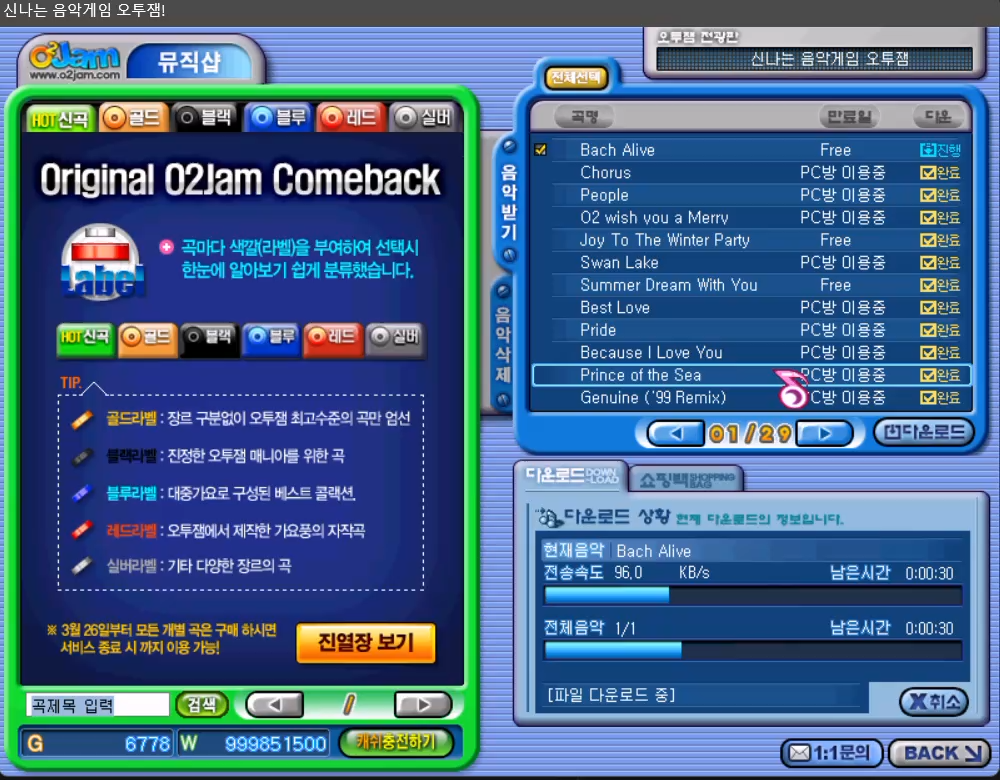
With the FTP sorted, I looked at the preview button in the music selection dialog. Clicking it does nothing.
I traced the music selection dialog through its RTTI class name CDSelectMusic. The initialization function loads an external Player.dll from the game directory via LoadLibraryA, then resolves three exports: InitPlayer, ReleasePlayer, and SetPlayURL.
The preview trigger function builds a URL and passes it to SetPlayURL:
sprintf(Buffer, "mms://media.talesrunner.com/o2jam_soundtrack/%d.wma", musicId);
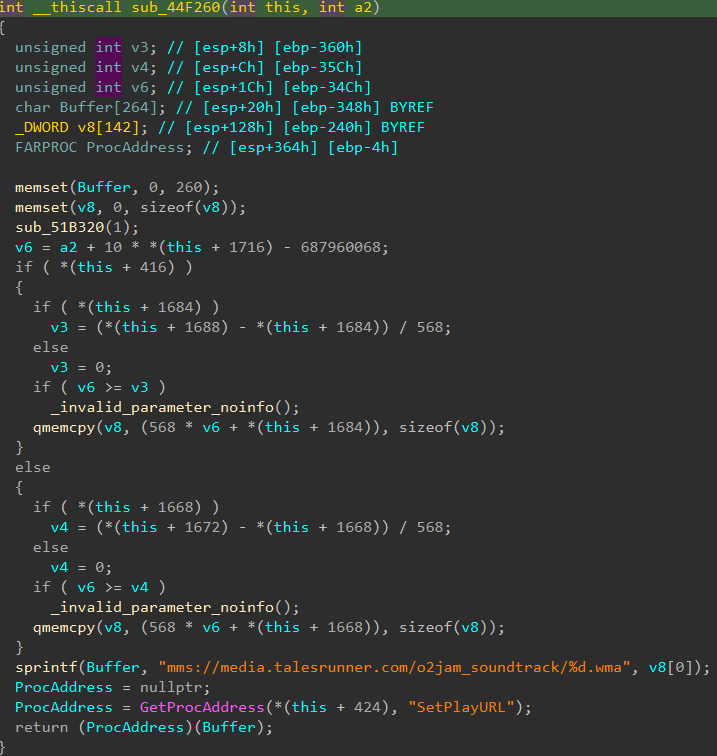
So the preview doesn’t use local OJN/OJM files at all. It streams WMA files from a remote server using Microsoft’s MMS protocol. And that server (media.talesrunner.com) has been dead for years.
Setting Up the Preview Server
My first thought was to set up a proper MMS server. MMS (Microsoft Media Services) is an old streaming protocol that was part of Windows Media Services on Windows Server. It’s been deprecated since Server 2012, and setting up a compatible server from scratch is not exactly fun.
But then I found something useful: most MMS client implementations (including Windows Media Player’s) will fall back to HTTP when the MMS protocol is unreachable. The Player.dll almost certainly uses the Windows Media Player SDK internally, so this fallback should apply here too.
The plan became simple:
- Redirect the domain via hosts file (this time it IS a hostname, so hosts file works)
- Serve the WMA files over plain HTTP
First, add this to the hosts file:
127.0.0.1 media.talesrunner.com
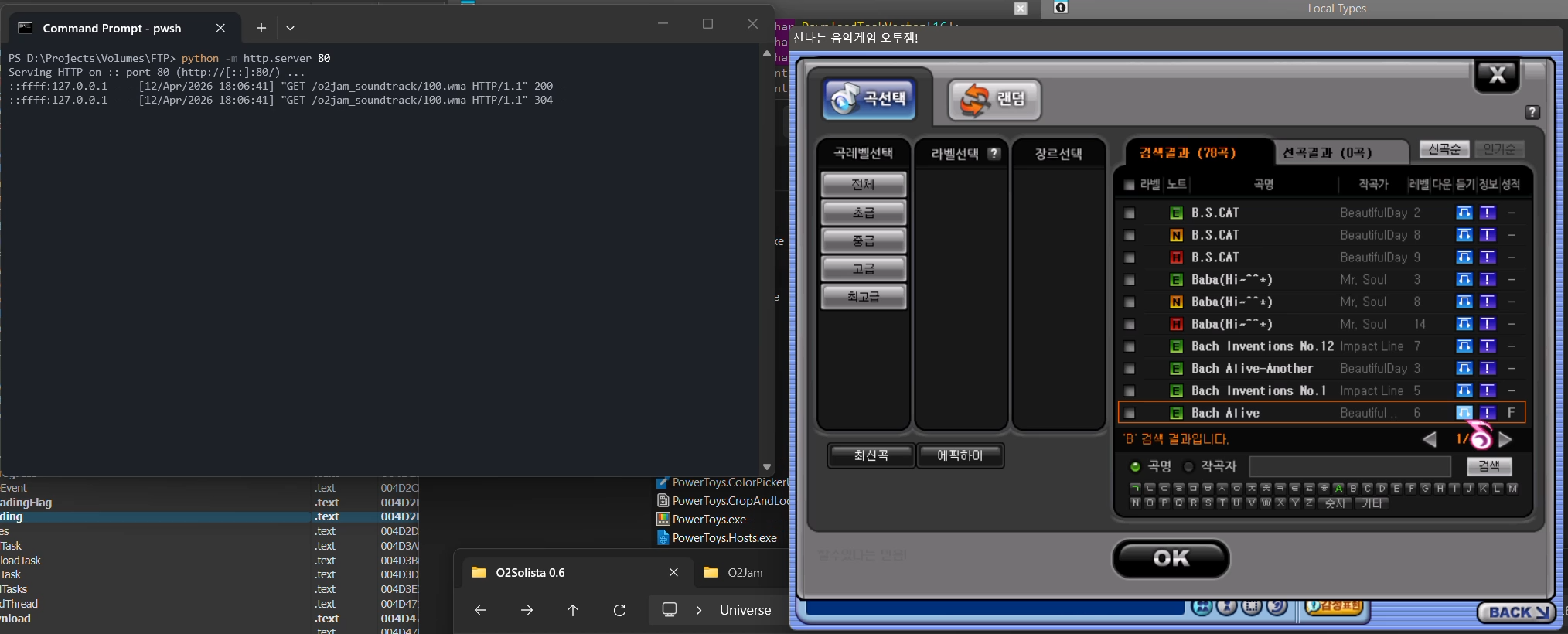
Then serve the WMA files from a directory matching the URL path. I just used Python’s built-in HTTP server:
python -m http.server 80
With the files placed at ./o2jam_soundtrack/<musicId>.wma, the preview button finally works. The client tries MMS, fails, falls back to HTTP, and plays the WMA file.
What’s next?
My searches always start simple: backward search, look at the import table and string tables, they do wonder for me in many times.
There are so much to be documented about the newer client versions both technical and non-technical stuff. I’ll be giving out details about the RSA encryption used in the launch arguments in time, but this is all for now.
Anyway Identity.Encore is released now with client support O2JamO2 Beta! Be sure to download the one with hotfix because I messed up the initial release :’( You can find the latest build here.
Until then, see you around!